Create a template
Create an HTML template in the Tuix dashboard.
A template is the HTML that gets rendered into a PDF. When rendering, you reference it by its Template ID.
Create a template
In the dashboard, open Applications and select the application the template belongs to.
Write the HTML content in the editor. The live preview on the right shows the result. Format HTML code tidies up the markup.
Click Save Pdf template. The template gets a Template ID, which you need to render.
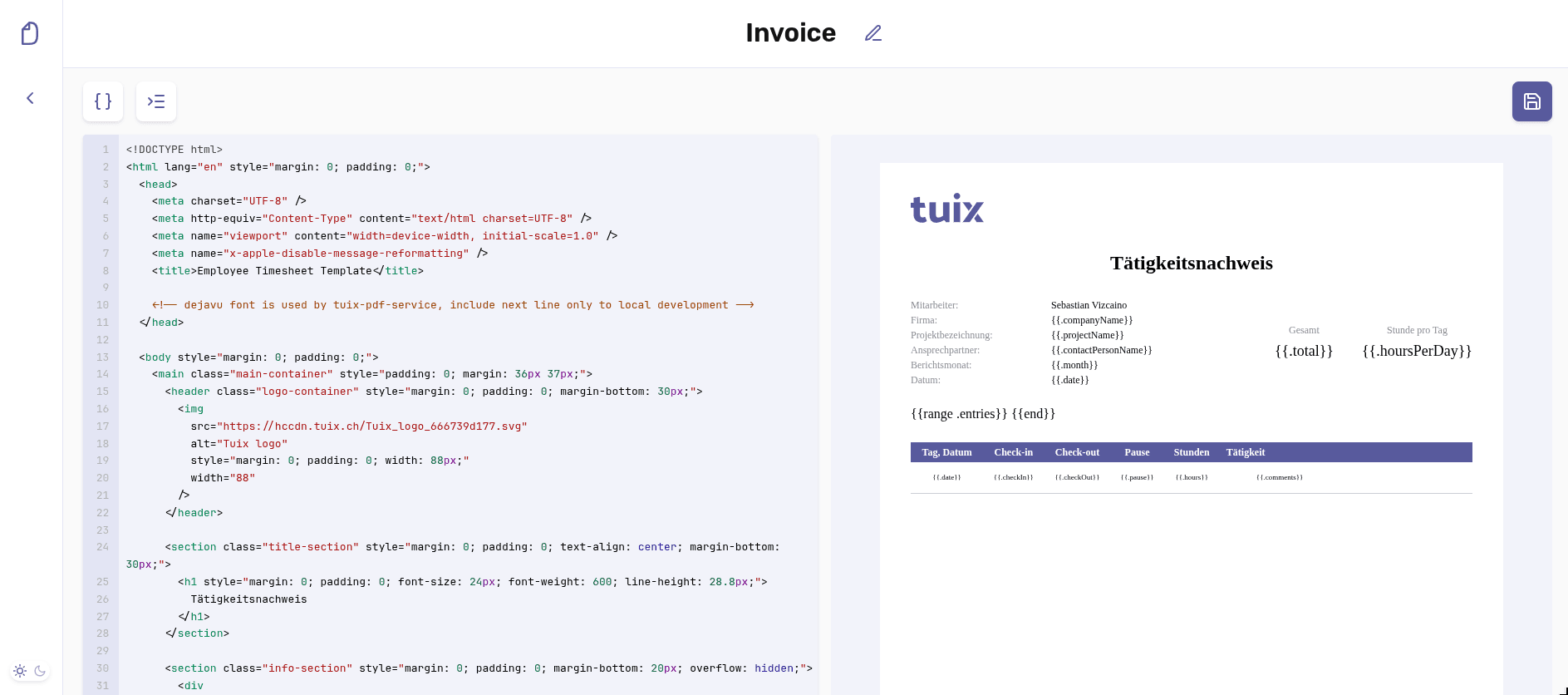
Variables
Placeholders in the HTML use Liquid syntax, the variable name inside double curly braces:
The editor detects the placeholders automatically and lists them under Set variables, where you can fill in preview values. Those values are only used for the preview in the dashboard, they are not saved with the template.
When rendering, you pass the real values in the data object:
The preview substitutes plain variables only. Loops and conditions
({% for %}, {% if %}) stay as-is in the preview and are expanded by
the server when the PDF is rendered.
Do not add a leading dot. {{ customerName }} renders the variable,
{{ .customerName }} fails on the server with a template error. See
Template syntax for loops, conditions and
nested values.
Pages are rendered as A4 portrait. Styling comes from the HTML itself, so
put your CSS in a <style> block inside the template.